
Nothing disrupts a productive workday faster than pressing the up button on your standing desk and getting no movement. Those frustrating messages, often referred to as standing desk error codes, can make even a high-quality desk feel unreliable. The problem is that most manuals don’t make things any easier. Many people end up scrolling through forums, trying random button combinations, or assuming the worst when the fix might be as simple as a reset.
Key Takeaways:
- Standing desk error codes like E01, E02, E03, and more usually signal minor issues such as motor overload and loose connections, and most can be resolved with a reset.
- Regular preventive habits such as balancing weight, keeping the desk path clear, and maintaining stable power greatly reduce the chance of standing desk errors.
- Knowing how to perform a universal reset and understanding what each code means empowers you to troubleshoot confidently.
In this guide, we’ll walk through the most common error codes you’re likely to encounter, explain what they mean, and show you practical steps you can take to get your desk working again.
What Standing Desk Error Codes Actually Mean
Standing desk error codes are simply your desk’s way of communicating that something isn’t working as expected. They usually point to common issues like a power interruption, uneven leg movement, overloaded weight, loose cables, or a safety feature such as an anti-collision system being triggered. While the letters and numbers can look intimidating, most codes are not signs of permanent damage. In many cases, they appear because the desk needs to be recalibrated after being moved, unplugged, or used heavily. The key is understanding that these messages are diagnostic clues, not automatic failure notices.
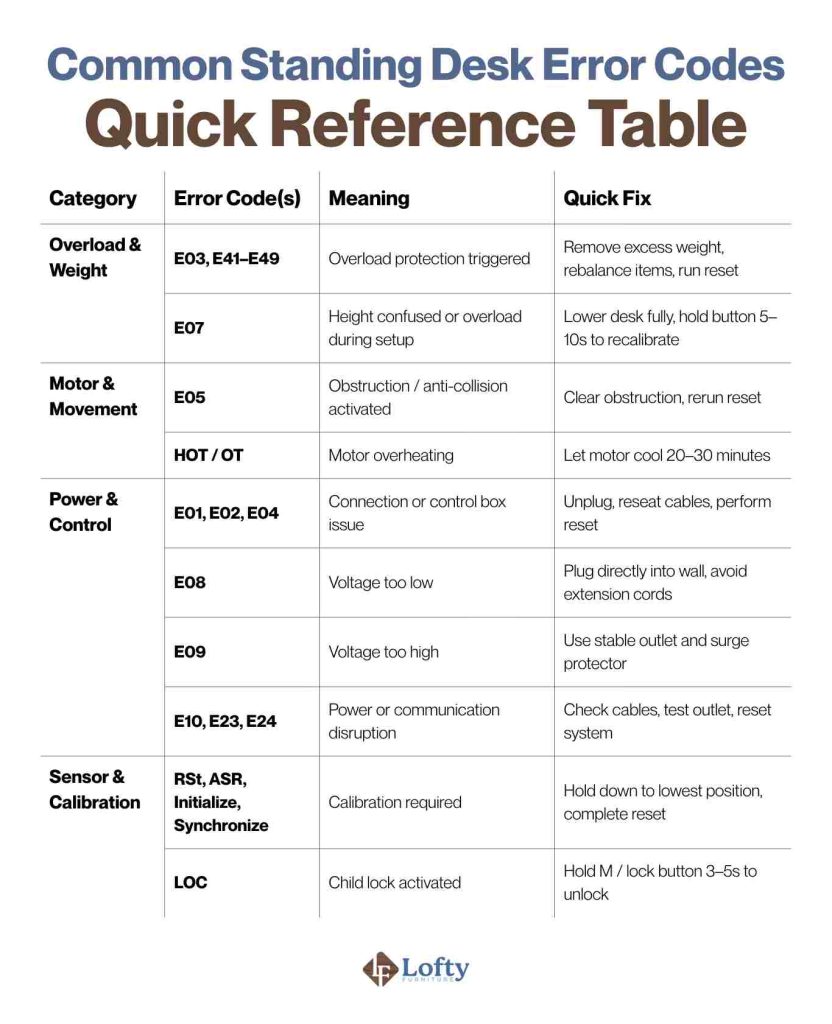
Common Standing Desk Error Codes and Solutions
Error code meanings can vary by brand and control box manufacturer. The interpretations below reflect the most common real-world usage across major standing desk brands and equipment manufacturers.
Overload and Weight-Related Error Codes
Code E03 and E41–E49 – Overload Protection
These codes appear when the desk detects too much weight on the desktop, an obstruction blocking movement, or uneven load causing one leg to work harder than the other.
Symptoms: The desk may stop mid-movement, struggle to lift, or display an error immediately after adding heavy items.
Fix: Remove heavy items and ensure nothing is obstructing the desk’s path. Rebalance the weight evenly across the surface and run a reset to restore normal operation.
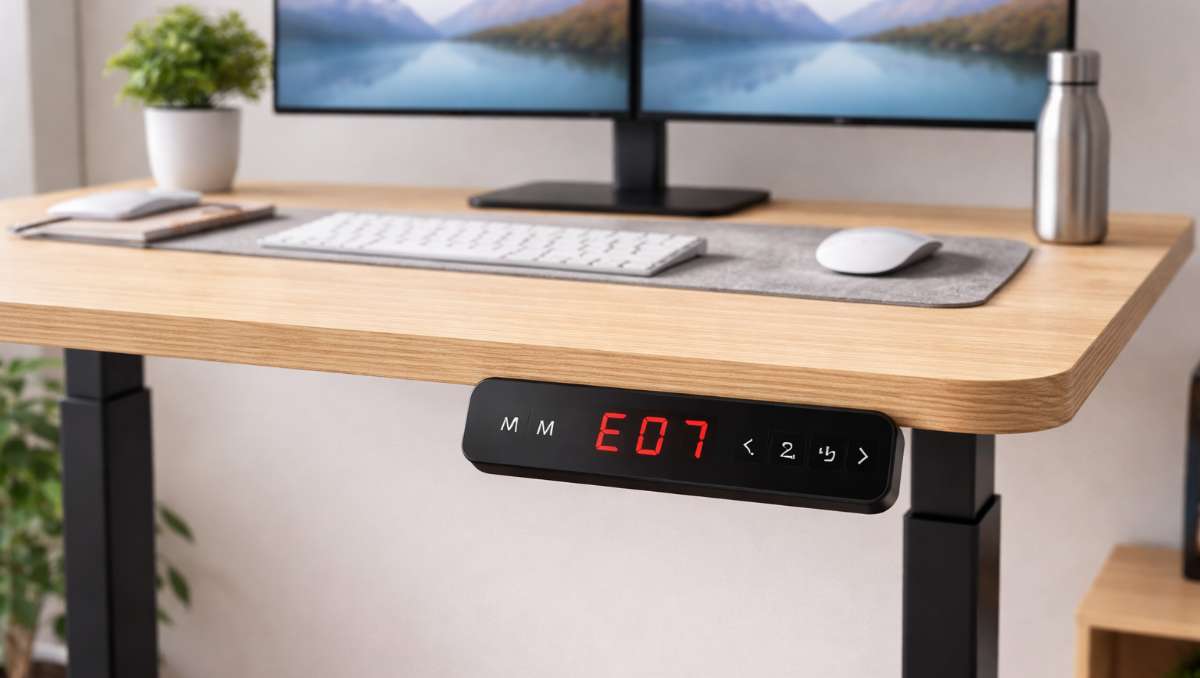
Code E07 – Height Setting Error or Overload Protection
This error usually appears when the desk gets confused about its lowest position, the reset or initialization sequence is interrupted, or excess weight is present during setup.
Symptoms: The desk may fail to move through its full range, stop unexpectedly, or display an error when adjusting height.
Fix: Lower the desk to its minimum height and hold the button for 5–10 seconds to allow full recalibration. Remove any excess weight during the reset and test the movement to ensure both legs operate smoothly.
Motor and Movement Error Codes
Code E05 – Obstruction / Anti-Collision Triggered
This error occurs when the desk detects resistance while moving, triggering the built-in anti-collision safety feature.
Symptoms: The desk may stop suddenly, refuse to move further, or display the error code until the obstruction is cleared.
Fix: Check for objects like chair arms, filing cabinets, or walls that may be in the desk’s path. Clear the area and re-run the reset so the desk can recalibrate safely.
Code HOT / OT – Motor Overheat Protection
These codes appear when the desk has been moved too many times consecutively and the motor temperature exceeds its safety limit.
Symptoms: The desk stops moving, buttons may be unresponsive, and the error remains until the motor cools down.
Fix: Allow the desk to rest for 20–30 minutes to let the motor cool, then resume normal use. Avoid continuous rapid adjustments in the future to prevent repeat overheating.
Power and Control Box Error Codes

Code E01 / E02 / E04 – Motor, Connection, or Control Box Error
These errors usually happen due to loose or partially disconnected cables, temporary power interruptions, or a communication glitch between the control box and the motors.
Symptoms: The desk may not move at all, the display may show the error immediately after pressing up or down, or one leg may try to move but stop abruptly.
Fix: Unplug the desk for 30–60 seconds, check and reseat all cables connecting the legs, handset, and control box, then plug it back in. Run the desk’s reset or calibration sequence if required, and ensure both legs move smoothly.
Code E08 – Voltage Too Low / E09 – Voltage Too High
E08 appears when the desk receives insufficient power, often due to a weak outlet, faulty adapter, or long/low-quality extension cords. E09 occurs when the voltage is too high, which can happen with unstable power sources or sudden surges.
Symptoms: The desk may move slowly, stop mid-motion, or display the error code on the control panel. In some cases, motors may make unusual noises or respond inconsistently.
Fix: Connect the desk directly to a stable outlet and avoid cheap or long extension cords. Using a surge protector can prevent both low and high voltage issues, and running a reset after stabilizing power usually restores normal operation.
Code E10 / E23 / E24 – Power or Connection Disruption
These errors typically occur when the control box cannot detect the handset, there’s an issue with the power adapter, or an internal communication failure happens between electronic components.
Symptoms: The desk may not respond to any button presses, the display may show an error immediately, or movement may be inconsistent.
Fix: Reseat all cables connecting the handset and control box, test the outlet to ensure it’s providing stable power, and try a different power adapter if needed. Once connections are secure, perform a reset to restore normal function.
Sensor and Height Calibration Errors

Code RSt / ASR / Initialize / Synchronize – Calibration Required
These codes are not actual errors but indicate the desk lost track of its height and needs to re-learn its lowest position.
Symptoms: The desk may fail to reach full range, move unevenly, or stop at incorrect heights.
Fix: Hold down the designated button to lower the desk fully, allow a slight rebound, and complete the calibration sequence according to your desk model. This process restores proper tracking and ensures smooth operation.
Code LOC – Child Lock Activated
This code appears when the desk’s controls are intentionally locked to prevent accidental adjustments, usually through the child safety lock feature.
Symptoms: The desk does not respond to any button presses, giving the impression that it’s broken, even though the motors and electronics are functioning normally.
Fix: Hold the M button or designated lock button for 3–5 seconds to unlock the controls. Once released, normal operation resumes, helping users quickly regain confidence that their desk isn’t malfunctioning.
Quick Safety Checks Before You Reset Anything
Before jumping straight to a reset, it’s worth taking a minute to rule out simple issues that can trigger errors or cause further problems if ignored. A quick safety check can protect your desk’s motor, prevent accidental damage, and save you time if the fix turns out to be something basic.
- Make sure the desk is plugged directly into a working wall outlet, not a loose extension cord or power strip.
- Check that all cables are fully seated in the control box and handset, with no visible fraying or pinching.
- Look under and around the desk to confirm nothing is blocking the legs or rails from moving freely.
- Remove heavy items temporarily to reduce load and rule out weight-related error codes.
- Inspect the desktop for uneven weight distribution that could cause one side to move slower than the other.
- Keep hands, pets, and objects clear of the standing desk frame before attempting any reset.
How to Reset a Standing Desk (Step-by-Step)
Resetting your standing desk is one of the fastest ways to fix common issues like error codes, uneven movement, or a desk that won’t respond. The process only takes a few minutes and works for most electric standing desks, even if the exact buttons vary by brand.

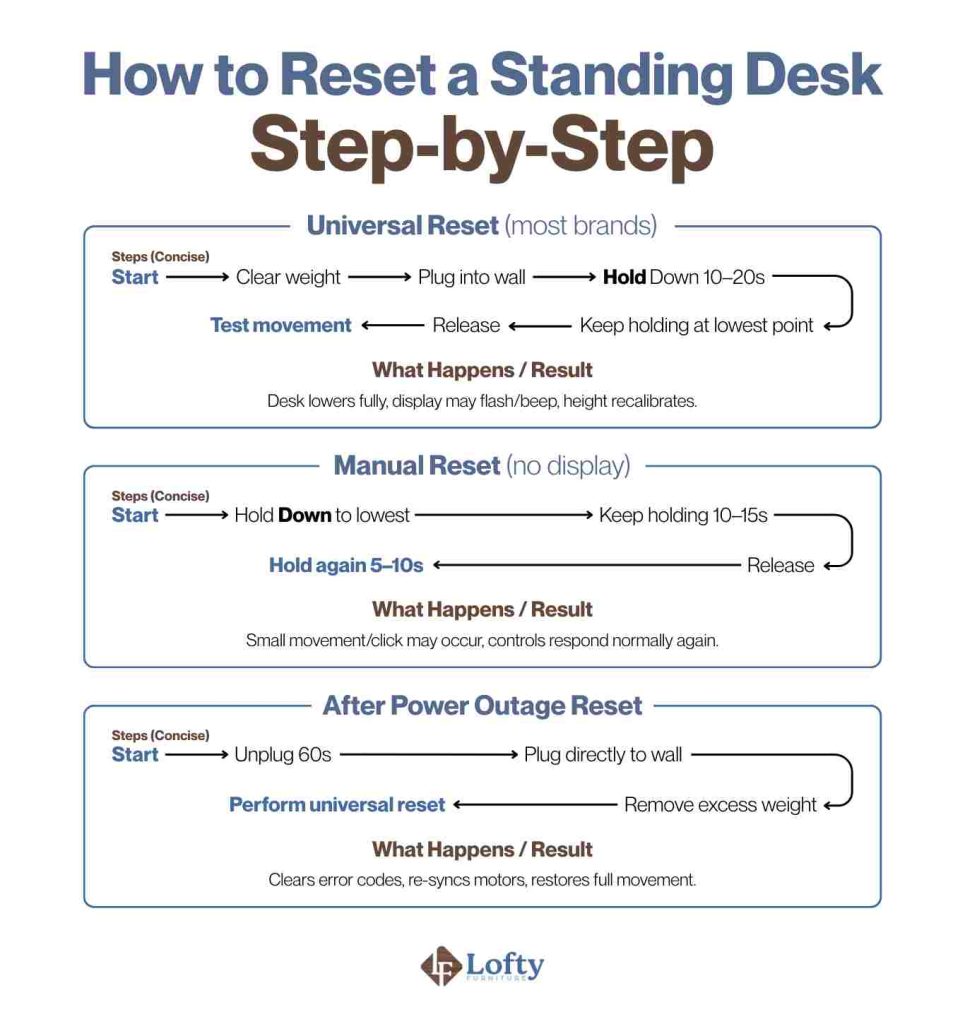
Universal Standing Desk Reset Method
This works for most brands like FlexiSpot, Fully, Uplift, Vari, Autonomous, etc.
- Clear the desk surface – Remove heavy items to prevent overload during reset.
- Plug the desk directly into the wall – Avoid extension cords for a stable power supply.
- Press and hold the Down button – Hold it continuously for 10–20 seconds.
- Keep holding even after it reaches the bottom – The desk may stop, then move slightly again.
- Wait for confirmation – Release the button only after you see or hear a response (see below).
- Test the desk – Press Up and Down to confirm smooth, full-range movement.
Manual Reset for Desks Without a Display
Some desks use basic up/down controllers with no screen. These can still be reset using timing and button combinations.
- Press and hold the Down button until the desk reaches its lowest height.
- Continue holding the button for 10–15 more seconds after it stops.
- Release the button briefly, then press and hold it again for 5–10 seconds.
- If successful, the desk may slightly move, click, or pause as it re-syncs.
- If nothing happens, unplug the desk for 60 seconds and repeat the process.
Resetting After a Power Outage
Power interruptions are a common reason standing desks suddenly stop working or show error codes. Here’s a safe restart process:
- Unplug the desk for at least 60 seconds.
- Plug it back directly into a wall outlet.
- Remove excess weight from the desk surface.
- Perform the universal reset method (hold Down button 10–20 seconds).
- Test full movement from lowest to highest position.
What to Do When a Reset Doesn’t Work (and How to Prevent Future Errors)
If your standing desk still won’t move after a proper reset, the issue is likely more than a calibration problem. Persistent failures often point to hardware-related causes such as a faulty control box, damaged handset, worn motor, or an internal cable issue. When one leg responds but the other doesn’t, it usually indicates a motor synchronization problem or a loose connection inside the frame rather than a software error.
Before replacing parts, try basic troubleshooting to narrow down the cause. Inspect all accessible cables for visible damage, ensure connectors are fully seated, and listen for unusual motor noises like grinding or clicking. If the desk is under warranty, contact the manufacturer with your model number and any error codes, as most brands will replace defective parts at little or no cost.
To prevent future standing desk errors, keep the desktop load within the manufacturer’s weight limits and distribute items evenly to avoid stressing one lifting column more than the other. Always clear the desk’s path before adjusting height and use a stable power source such as a wall outlet or quality surge protector. Periodic cable checks can extend the life of your desk’s electronics.
If your current desk is stuck on an error code, it might be time to upgrade to the lasting reliability of a handcrafted Amish adjustable desk. Explore our collection today.
Final Thoughts: Keep Your Desk Running Smoothly
Understanding standing desk error codes and knowing how to reset your desk can save you hours of frustration and prevent unnecessary repairs. Most errors are simple signals from the desk’s system, indicating overloads, obstructions, or minor communication glitches. By following proper reset procedures and practicing preventive habits like balancing weight, keeping the desk path clear, and maintaining stable power, you can keep your desk operating smoothly for years. With a little knowledge, those blinking codes become helpful alerts instead of stressful interruptions.
Frequently Asked Questions (FAQs)
Why does my standing desk keep showing an error code after resetting?
This usually happens if the underlying cause wasn’t fully addressed. Common reasons include remaining obstructions, excessive weight, loose cables, or unstable power. Double-check each factor and perform the factory reset again once everything is corrected.
Can I damage my desk by resetting it too often?
No, performing resets occasionally won’t harm your desk. In fact, resets help recalibrate the motors and control system. However, frequent rapid adjustments without allowing motors to cool or ignoring overload warnings can strain the system over time.
What should I do if my standing desk won’t reset at all?
First, check that the desk is receiving stable power and all cables are secure. If the desk still won’t reset, unplug it for a longer period (1–2 minutes), then try again. Persistent issues may require contacting the manufacturer.
Can I manually lower my standing desk if the motor or control box has completely failed?
Some desks allow limited manual lowering, but it depends on the model and design. Forcing movement can damage the frame or electronics, so it’s safest to consult the user manual or contact the manufacturer before attempting any manual adjustment.