
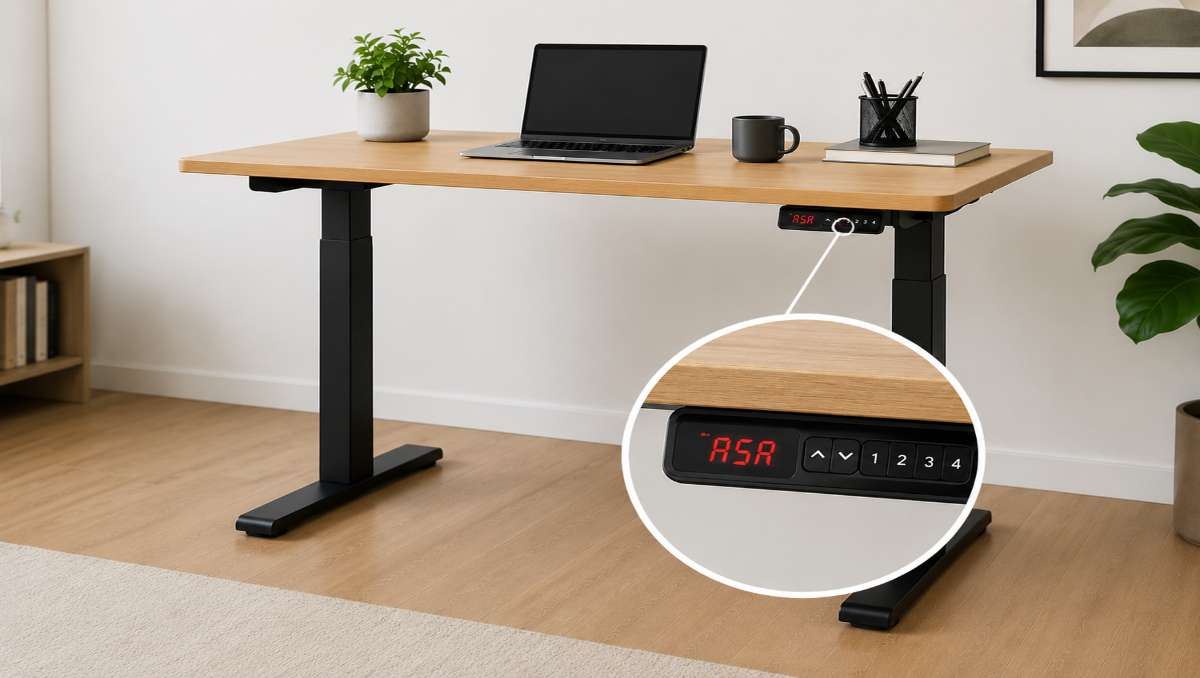
Seeing “ASR” on a standing desk display can be confusing, especially when the desk suddenly stops moving or refuses to adjust properly. Understanding what this code means is important because it can help you quickly identify whether the issue is simply a built-in safety response or a sign that your desk needs troubleshooting. In many cases, ASR is connected to the desk’s anti-collision system, a feature designed to protect the frame and surrounding objects during movement.
Key Takeaways:
- The All System Reset code usually appears when the desk’s movement has been blocked or when the anti-collision feature has been activated.
- ASR is usually triggered by weight imbalance, obstructions, or sensitivity settings.
- Most ASR issues can be fixed with a reset and prevented with proper setup and regular maintenance.
In this article, we’ll explain what ASR means on standing desk displays, why it appears, and what you can do when it shows up.
What Does ASR Mean on a Standing Desk Display?
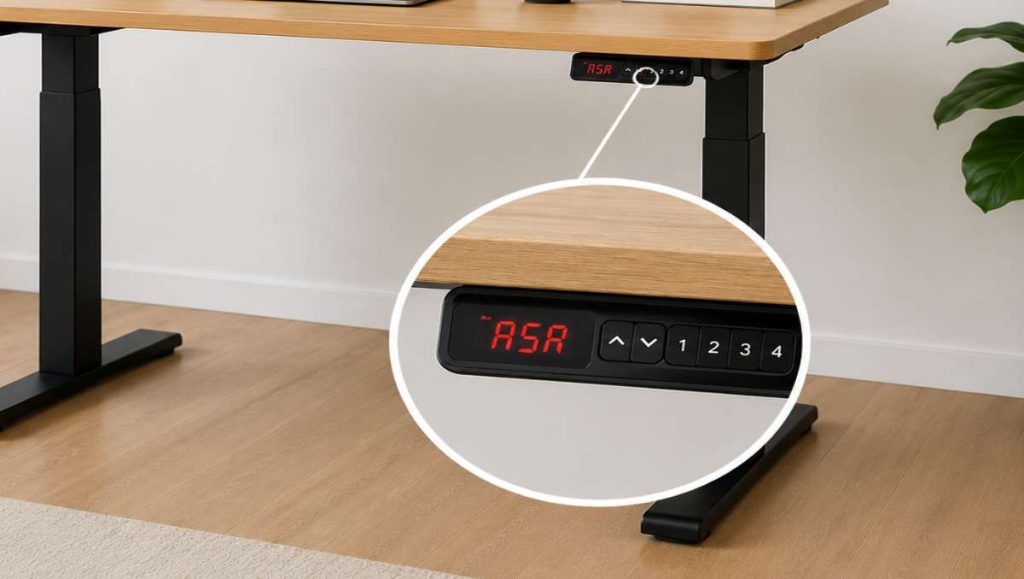
On many types of standing desks, ASR stands for All System Reset. It usually appears when the desk’s control system needs to be reset after detecting a problem or interruption during movement. In most cases, ASR is connected to the desk’s anti-collision and safety system. The warning can appear if the desk encounters resistance, becomes uneven, carries excessive weight, or loses synchronization between the lifting columns.
Seeing ASR does not necessarily mean the desk is broken. It is often a temporary warning that can be resolved by performing the desk’s reset procedure. Keep in mind that ASR is not universal across all standing desk brands. Different manufacturers may use different meanings, reset codes, or display messages depending on the control box and keypad system.
Common Reasons ASR Appears on a Standing Desk Display
ASR warnings can show up for several different reasons, and not all of them mean your standing desk is malfunctioning.
Heavy Equipment Triggering ASR
Placing too much weight on a standing desk can sometimes activate the ASR function. Multiple monitors, desktop computers, speakers, and other heavy equipment may push the desk close to its lifting capacity, especially if the weight is unevenly distributed across the surface.
Uneven Floors and Stability Problems
Standing desks rely on balanced movement to operate smoothly. If the desk is placed on an uneven floor or one of the feet is not fully stable, the frame may tilt slightly while adjusting height. Even small shifts in balance can sometimes trigger the anti-collision system.
Power Supply and Electrical Issues
In some cases, ASR warnings are connected to inconsistent power delivery or electrical interruptions. Loose power cables, overloaded outlets, or sudden power fluctuations can interfere with how the control box communicates with the desk motors.

Calibration or Synchronization Issues
Many dual-motor standing desks require occasional recalibration to keep both lifting columns moving evenly. If one side becomes slightly out of sync with the other, the control box may detect irregular movement and display ASR. This can happen after power outages, unplugging the desk, or moving the desk to a new location. A simple reset procedure often resolves synchronization-related ASR errors.
Sensitivity Settings That Are Too High
Some standing desks allow users to adjust anti-collision sensitivity. If the sensitivity is set too high, the desk may mistake normal resistance or minor vibrations for an obstruction. For example, slightly uneven weight, cable tension, or minor frame flex can falsely trigger the ASR warning even when nothing is blocking the desk.
How to Reset ASR on a Standing Desk
In many cases, an ASR warning can be fixed with a simple reset procedure. However, reset steps are not identical across all standing desk brands and models. Different manufacturers use different control boxes, keypads, and error codes, so the exact process may vary slightly.
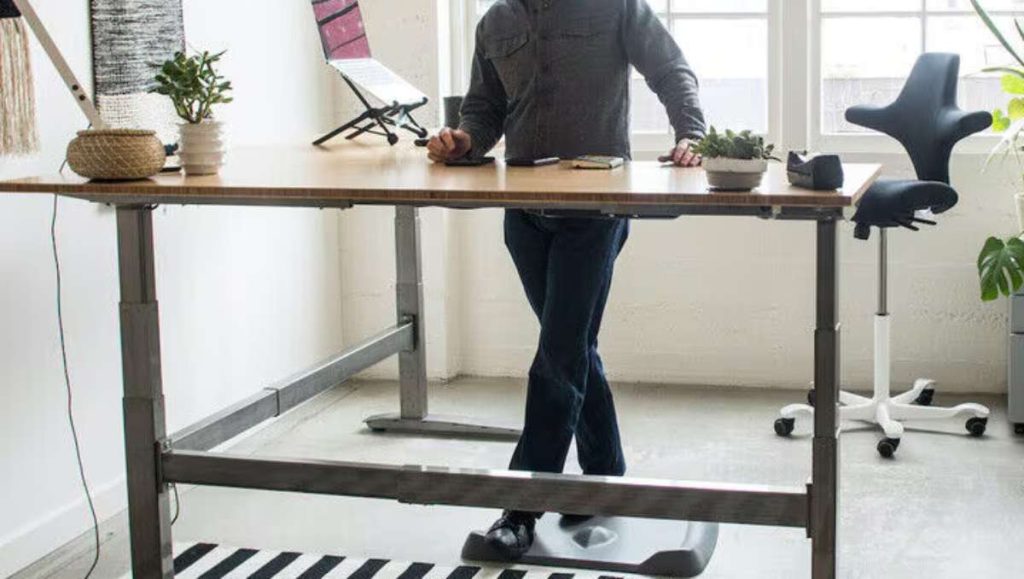
Before resetting, check your desk’s manual if available. The steps below cover the most common reset method used on many electric standing desks.
1. Clear the area around the desk and unplug the desk for a few minutes.
Check underneath and around the desk for anything that may have triggered the anti-collision system. Chairs, drawers, cables, and nearby furniture are common causes. Disconnect the power cable from the outlet and wait about 30 seconds to 2 minutes.
2. Plug the desk back in.
Reconnect the power and make sure all cables are firmly attached. Loose motor or controller connections can sometimes cause the ASR warning to return.
3. Press and hold the down button and wait for the reset to complete.
Hold the down arrow until the desk reaches its lowest height. On many standing desks, you may need to keep holding the button for several more seconds after it fully lowers. Some desks will display “RST,” flash the screen, or slightly move up and down during the reset process. Once the display returns to normal, test the desk by raising and lowering it.
4. Adjust the anti-collision sensitivity if needed.
If ASR keeps appearing without an obvious reason, your desk’s sensitivity setting may be too high. Some controllers allow you to lower the anti-collision sensitivity through the control panel settings.
When a Reset Does Not Work
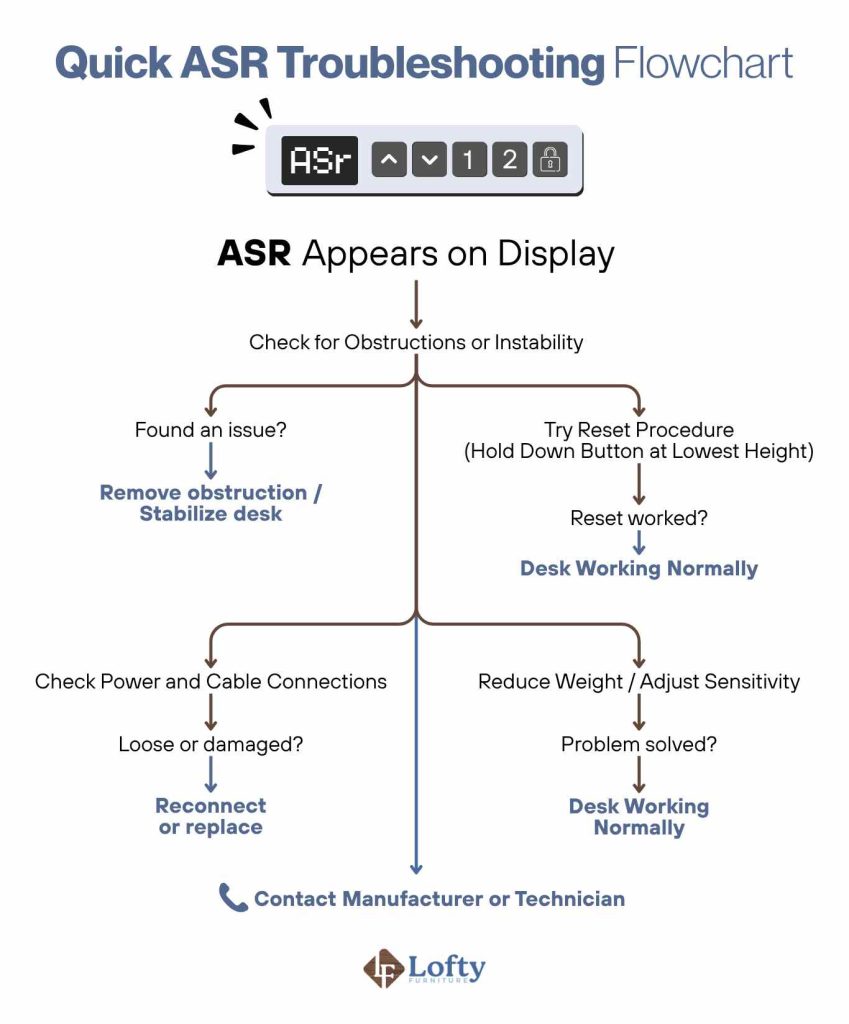
If resetting the desk does not clear the ASR warning, the issue may be more than a temporary safety trigger. Persistent ASR errors can indicate loose cables, a faulty control box, overloaded weight, or lifting columns that are out of sync. High anti-collision sensitivity can also cause repeated warnings.
In many cases, small setup changes trigger the problem. Adding a heavy monitor arm or placing the desk on uneven flooring can create enough imbalance to activate the safety system. If the desk freezes, moves unevenly, or will not reset, try reducing the load and testing the desk again. If the issue continues, consult the manufacturer’s troubleshooting guide or contact support before replacing parts.
How to Prevent ASR Issues in the Future
Most ASR warnings can be avoided with proper desk setup and regular maintenance.
- Keep Weight Within Capacity Limits: Every standing desk has a recommended lifting capacity, and exceeding it can put extra strain on the motors and frame. Try to distribute heavier equipment evenly across the desktop.
- Improve Cable Management: Loose or tangled cables underneath the desk can sometimes interfere with movement and accidentally trigger the anti-collision system.
- Recalibrate the Desk Periodically: Performing a quick reset or recalibration every few months can help maintain smoother movement and reduce unnecessary ASR warnings.
- Maintain a Stable Desk Environment: Uneven floors, loose hardware, and constant shifting can affect how accurately the desk detects movement resistance. Checking bolts regularly and making sure the desk stays level can improve long-term stability.
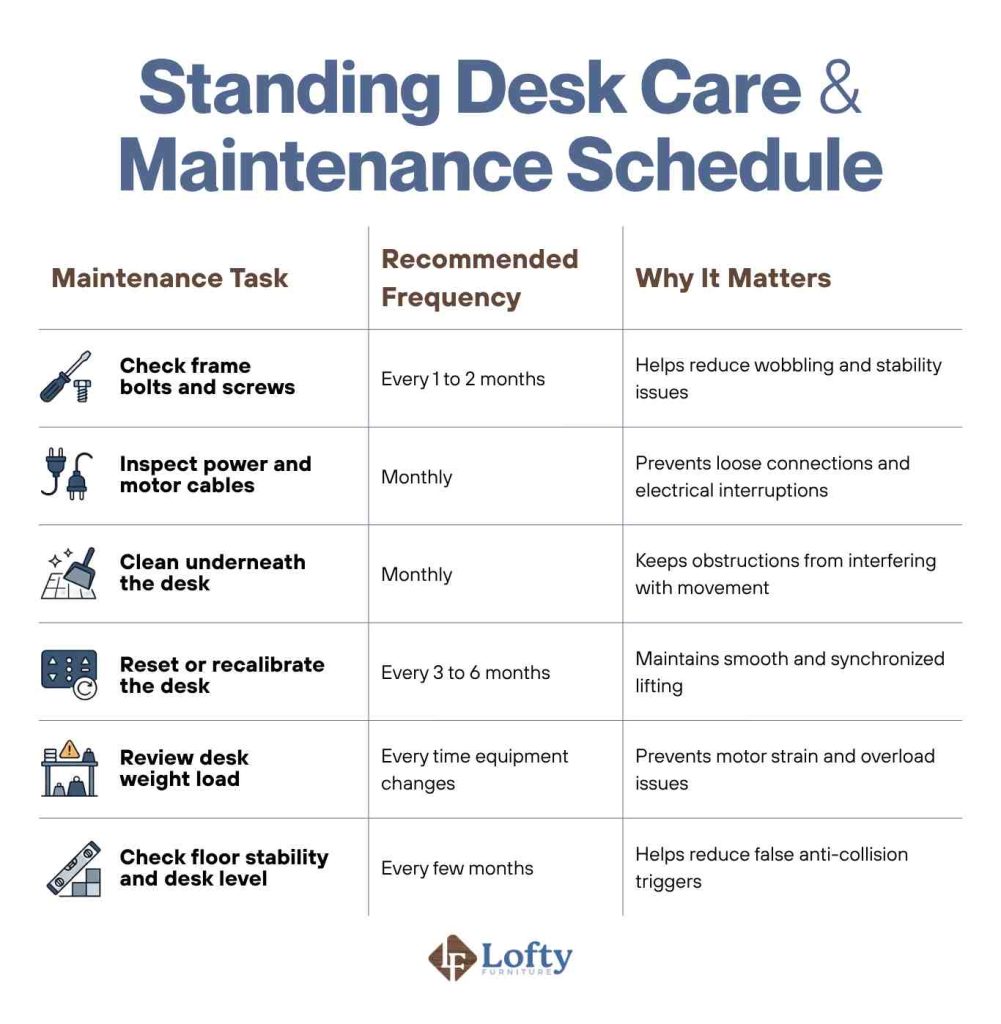
From our experience working with adjustable desk setups, preventive maintenance is one of the easiest ways to avoid recurring error codes and extend the life of the desk’s motor system. The table below outlines a simple maintenance schedule users can follow:
If your desk isn’t worth saving or you’re ready to invest in a standing desk built to last, upgrade your workspace with one of our Amish lift desks to enjoy the perfect balance of heirloom quality and ergonomics.
Final Thoughts on ASR in Standing Desk Displays
ASR on a standing desk display is usually part of the desk’s built-in safety system. In most cases, it is not a serious fault but a protective warning triggered by imbalance, obstruction, overload, or movement issues. Understanding what ASR means makes troubleshooting much easier. Simple fixes like clearing obstructions, redistributing weight, checking stability, or resetting the desk often resolve the issue quickly. With proper setup and routine maintenance, recurring ASR warnings can usually be avoided.
Frequently Asked Questions
Can I still use my desk if the ASR code won’t go away after a reset?
It is not recommended. If ASR persists, the desk may stop mid-movement or behave unpredictably, so it is safer to troubleshoot first before continued use.
Why does ASR keep appearing on my standing desk display?
It usually happens due to repeated triggers like uneven flooring, overloaded weight, loose parts, or something interfering with the desk’s movement path.
Can a heavy monitor setup trigger ASR warnings?
Yes. If the total weight is close to or beyond the desk’s capacity, or unevenly distributed, it can activate the anti-collision system.
How much weight is too much for a standard standing desk before it triggers an error?
It depends on the model, but most standard desks range between 70 kg to 120 kg capacity. Going beyond that or loading weight unevenly can cause errors like ASR.