
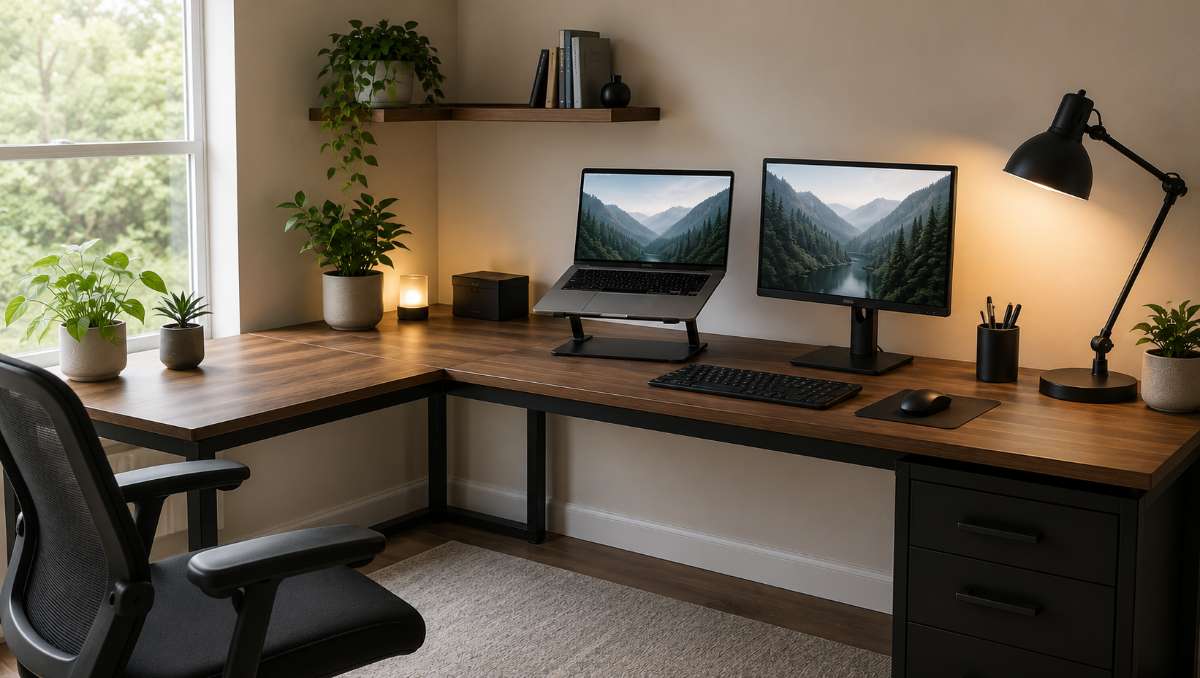
An effective laptop monitor setup can dramatically improve productivity, comfort, and workspace organization. As more people embrace hybrid work, gaming, content creation, and remote collaboration, the demand for flexible workstation layouts continues to grow. One of the most practical solutions is an L-shaped desk, which provides ample surface area while making it easier to organize multiple screens and accessories.
Key Takeaways:
- An L-shaped desk provides more flexibility, workspace, and organization for laptop and monitor setups than most desk layouts.
- A great laptop monitor setup combines ergonomic monitor placement, proper viewing distance, and a layout that matches your workflow.
- Popular setup examples include a centered monitor with the laptop on a side, dual monitors across the desk surface, and ultrawide monitor configurations.
Why an L-Shaped Desk Is Perfect for Multi-Screen Setups
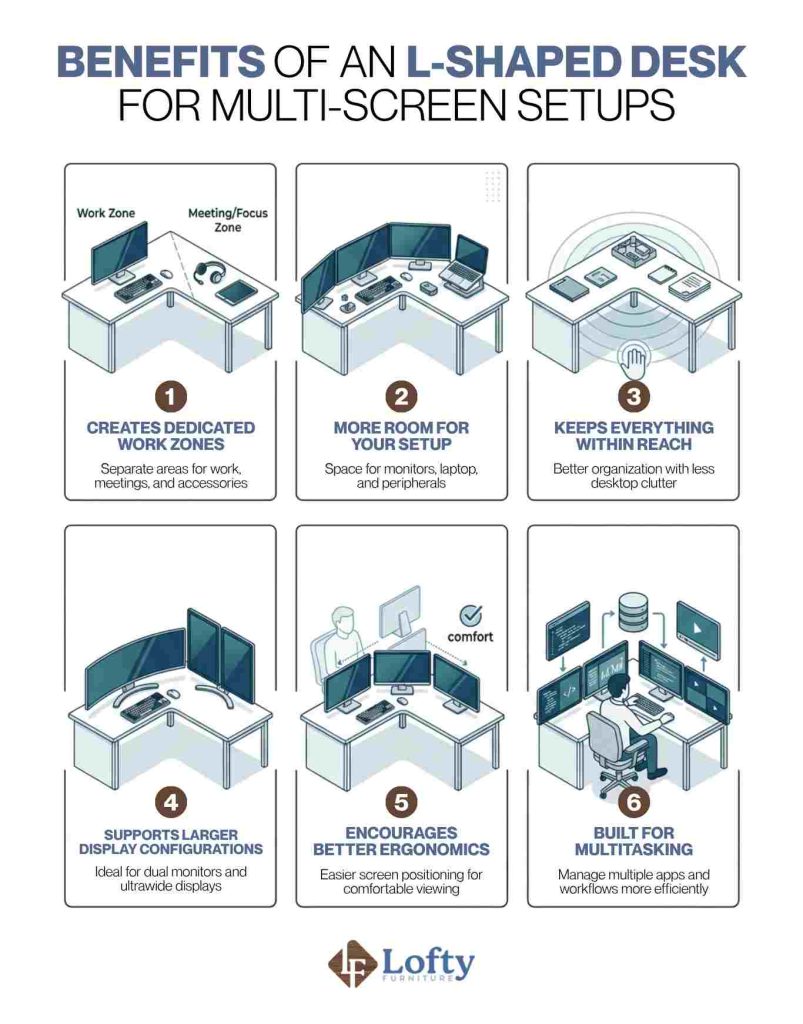
An L-shaped desk naturally creates separate work zones without requiring additional furniture. The extended surface allows users to position monitors, laptops, peripherals, and work materials in dedicated areas while maintaining easy access to everything. This extra flexibility makes it easier to build a setup that feels organized rather than crowded.
These desks are particularly beneficial for remote professionals, programmer setups, designers, traders, content creators, engineers, and gamers who frequently work across multiple applications and screens. The additional workspace supports larger monitor configurations while helping users maintain a more ergonomic posture throughout the day.
Key Factors to Consider Before Planning Your Laptop Monitor Setup
Before purchasing monitors, mounts, or accessories, it’s important to evaluate your available space and workflow requirements. Here are key factors to consider:
Desk Dimensions and Available Space
The desk dimensions determine how many monitors you can comfortably accommodate in your L-shaped desk. Measure both desk wings as well as the corner section before selecting display sizes. You should also account for monitor stands, monitor arms, speakers, lighting, and any other accessories that occupy desk space.
Number of Monitors Needed & Laptop Usage Style
The ideal number of monitors depends largely on how you work. Your laptop usage style matters as well. Some users keep their laptop open as a secondary display, while others place it in a vertical stand and rely entirely on external monitors.
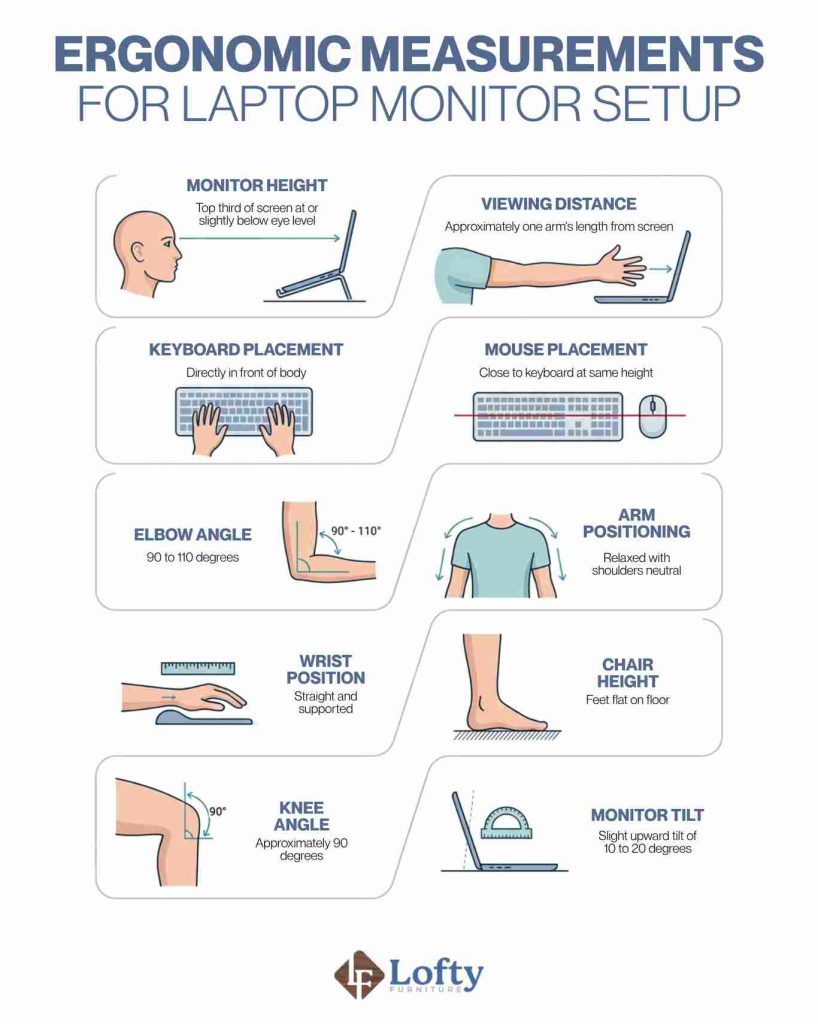
Regardless of configuration, the top third of your primary monitor should sit at or slightly below eye level. Proper monitor height helps reduce neck strain and encourages a more natural viewing posture.
Cable Management & Power Outlet Requirements
Before finalizing your setup, identify nearby power outlets and determine how many devices require continuous power. Surge protectors, under-desk cable trays, video cables, and cable management accessories can significantly improve both safety and appearance. Planning cable routes in advance also makes future upgrades much easier.
Viewing Distance and Monitor Size
Monitor size directly affects how far you should sit from the screen. Sitting too close can increase eye fatigue, while sitting too far may reduce readability.
General distance guidelines include:
- 24-inch monitor: 20 to 24 inches away
- 27-inch monitor: 24 to 30 inches away
- 32-inch monitor: 30 to 36 inches away
- 34-inch ultrawide monitor: 30 to 40 inches away
Before selecting your final layout, use the following ergonomic measurements as a baseline to ensure long-term comfort and productivity.
Best Laptop Monitor Setup Ideas for an L-Shaped Desk
One of the biggest advantages of an L-shaped desk is its flexibility. Here are some of the most practical setup ideas.
1. Monitor in the Center, Laptop on the Side
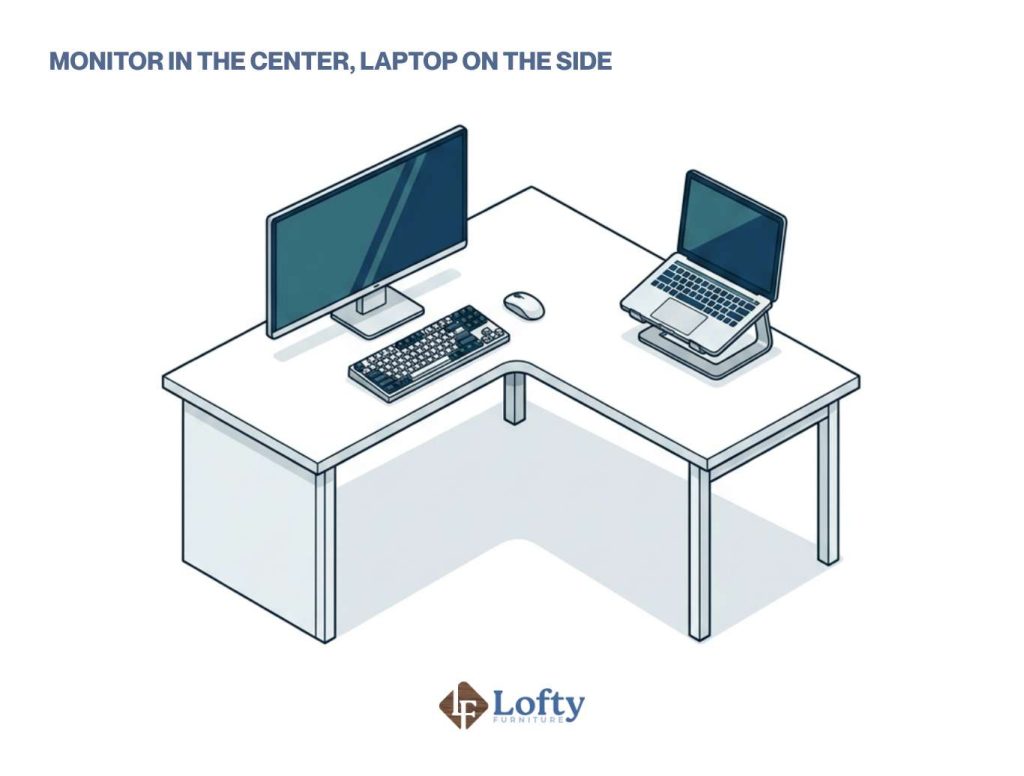
This is one of the most common layouts because it keeps your primary screen directly in front of you while giving your laptop its own dedicated space. The monitor handles most of your work, while the laptop stays within easy reach for checking emails or joining video meetings.
It’s a great desk for students, office workers, and anyone who mainly works on a single monitor but still needs regular access to their laptop.
2. Position Both Screens in the Corner
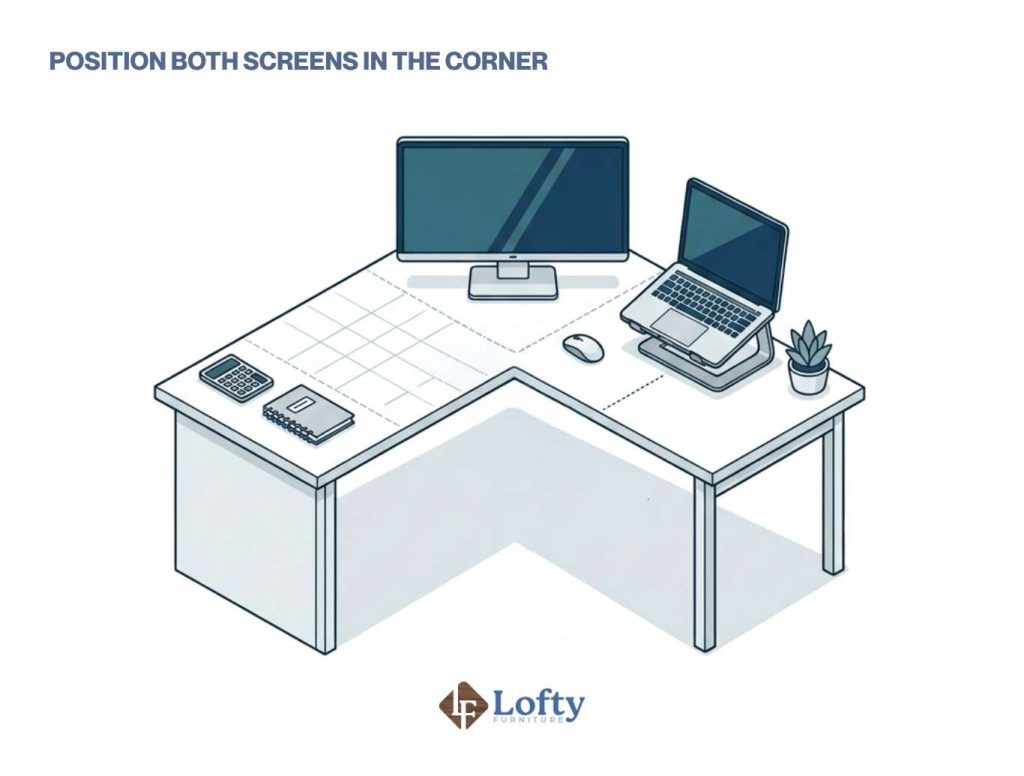
If you prefer using both your laptop and monitor throughout the day, try placing them around the inside corner of the L-shaped desk. Put the monitor in front of you and angle the laptop slightly beside it so both screens are easy to view without constantly turning your head.
This corner desk setup makes good use of the corner space and works especially well on smaller L-shaped desks where every inch counts.
3. Use a Vertical Laptop Stand
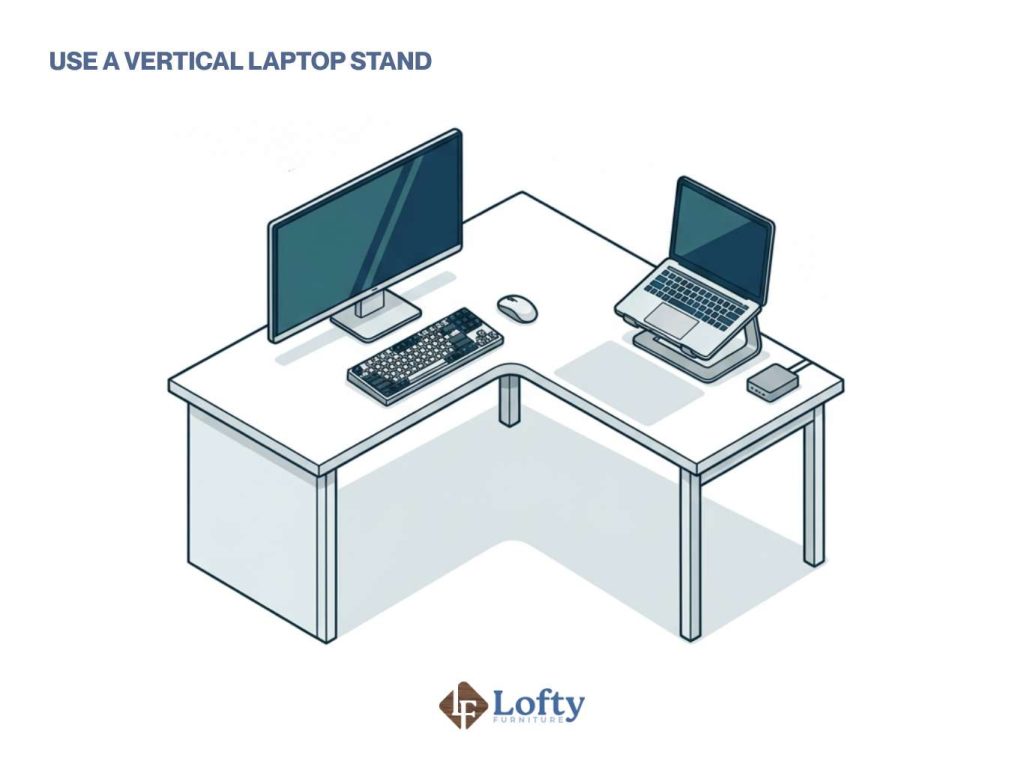
If you rarely use your laptop’s built-in display, a vertical stand can instantly free up desk space. The laptop stays docked while an external monitor becomes your main screen, with your keyboard, mouse, and other accessories connected through a docking station.
The result is a cleaner workspace with fewer cables and more room for everyday tasks. It’s especially convenient for people who regularly move between home and the office.
4. Set Up Two Monitors Across the Main Desk
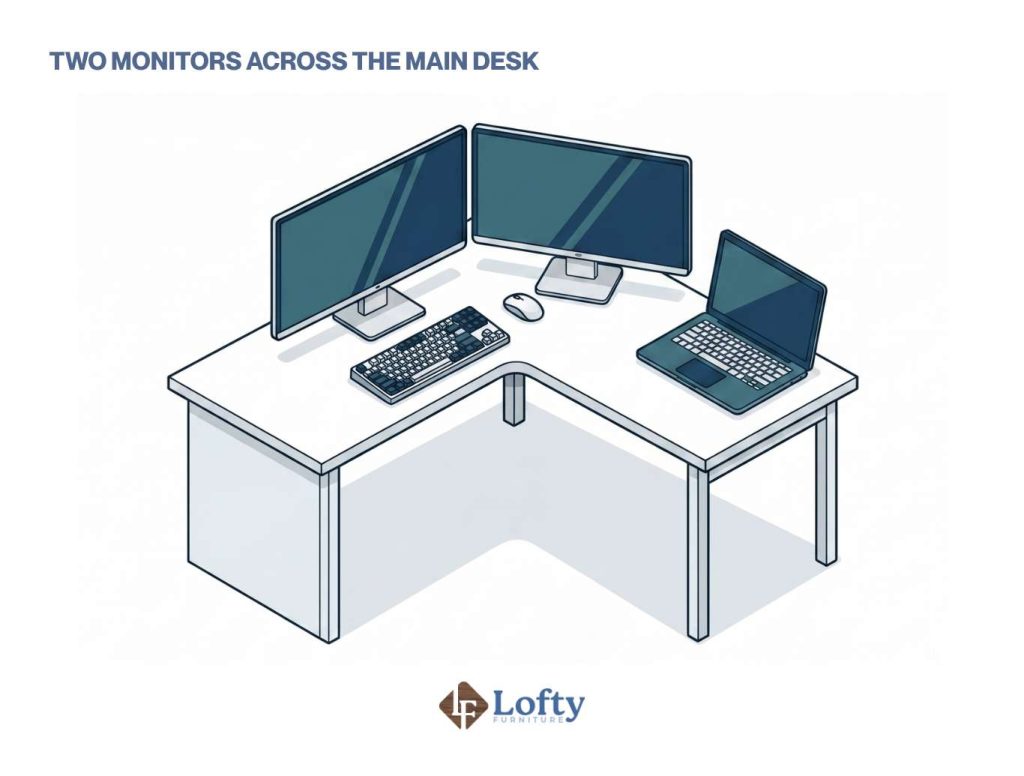
For users who constantly work with multiple applications, a dual-monitor setup can make a huge difference. Place both monitors side by side on the main section of the desk, keeping them at the same height and angled slightly toward you for a more comfortable viewing experience.
Some people center the gap between the two screens, while others position their primary monitor directly in front of them and use the second display for reference material, apps, or dashboards. Either approach works well as long as you aren’t twisting your neck throughout the day.
5. Pair Your Laptop with an Ultrawide Monitor
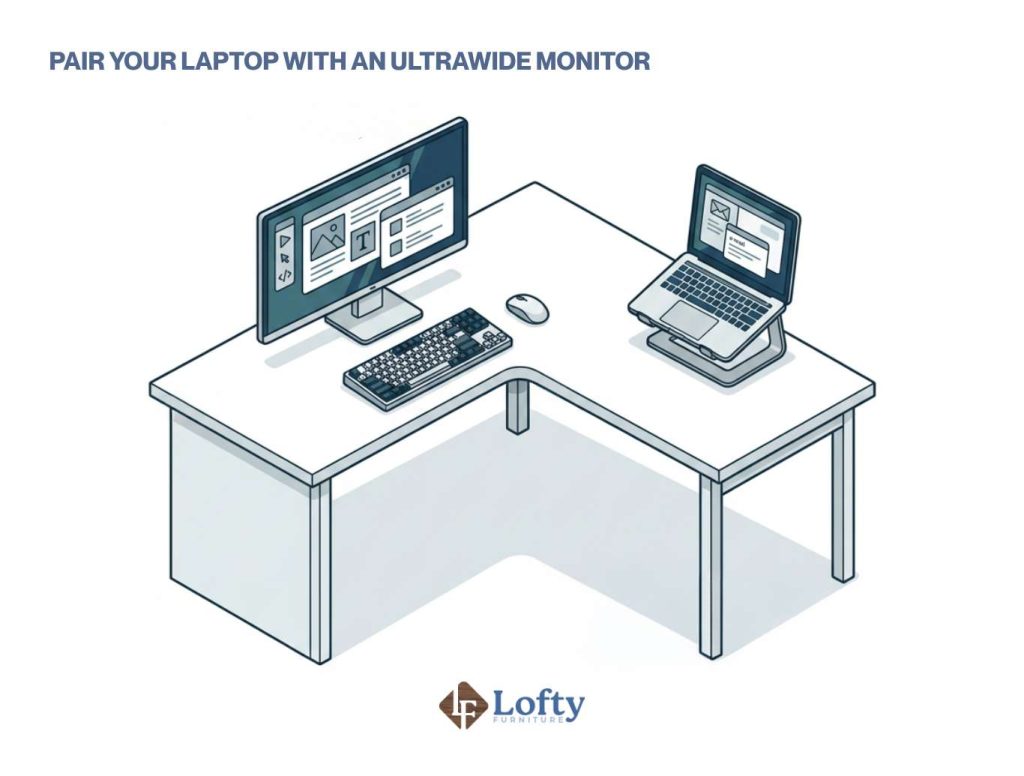
If you want extra screen space without managing two separate monitors, an ultrawide display is an excellent alternative. Position the ultrawide monitor in front of you and keep your laptop on the side wing for secondary tasks.
This setup is popular with video editors, graphic designers, content creators, and software developers because a wider display makes it easier to keep multiple windows open at once. Many people also find it less distracting than switching between two separate monitors.
6. Create an L-Shaped Dual Monitor Workspace
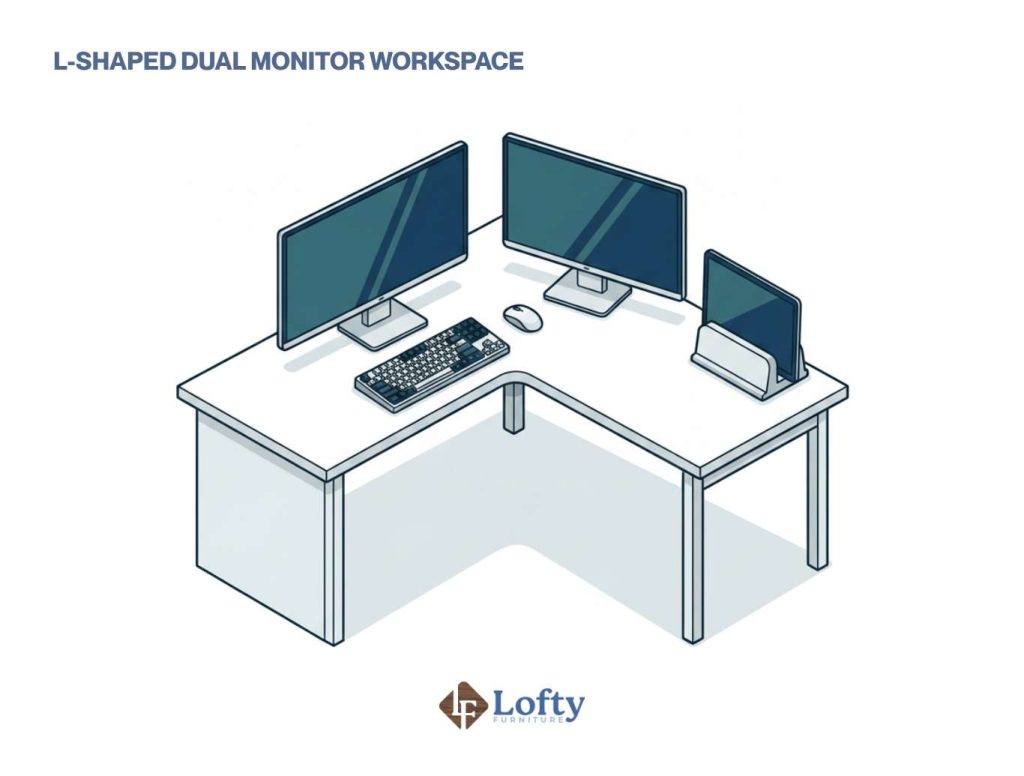
Take advantage of the desk’s shape by placing one monitor directly in front of you and the second along the adjacent wing. This creates a natural wraparound workspace where your most-used screen stays centered while the second monitor is close enough for multitasking.
Your laptop can sit underneath a monitor stand, on the side of the desk, or in a vertical dock to keep the work surface uncluttered. This arrangement works especially well for engineers, researchers, editors, traders, and anyone who needs several applications visible throughout the day.
Accessories That Improve an L-Shaped Desk Setup
The right accessories can significantly enhance both functionality and comfort. Small upgrades often provide some of the biggest improvements of your desk setup:
Monitor Arms: Raise and adjust your monitor for better comfort and posture.
Docking Stations or USB Hubs: Connect multiple devices quickly while keeping cables to a minimum.
Cable Management: Use trays, sleeves, or clips to keep cords organized and out of the way.
Task Lighting: Good lighting reduces eye strain and makes it easier to work.
Desk Organizers: Drawers, shelves, and monitor risers keep everyday items within easy reach and your workspace clutter-free.
Ready to overhaul your workspace layout? Explore our curated collection of ergonomic L-shaped desks to find the perfect foundation for your new multi-monitor setup.
Final Thoughts: Creating the Ideal Laptop Monitor Setup on an L-Shaped Desk
An L-shaped desk offers one of the most versatile foundations for a productive laptop and monitor setup. The key is to design your workstation around how you actually work. A remote employee may benefit from a simple monitor-and-laptop configuration that keeps video calls and daily tasks organized, while a programmer, designer, or content creator may need multiple displays and dedicated work zones.
Ergonomics should also remain a top priority. With the right combination of layout, ergonomics, and equipment, your laptop monitor setup can become a workspace that not only looks great but also helps you work more efficiently every day.
Frequently Asked Questions
How do you set up a monitor with a laptop?
Connect the laptop to an external monitor using HDMI, DP ports, USB-C, or a docking station. Position the monitor directly in front of you at eye level and use the laptop as either a secondary display or dock it in a vertical stand.
What is the best laptop monitor setup?
The best productivity setup depends on your workflow. For most users, a centered external monitor with the laptop positioned on the side wing of an L-shaped desk provides an excellent balance of ergonomics and productivity.
Should a laptop be placed directly in front of you or off to the side?
If the laptop is your primary display, it should be centered directly in front of you. If you’re using an external monitor as the primary screen, placing the laptop slightly to the side is typically more ergonomic.
What size monitor works best with an L-shaped desk setup?
Most users find 27-inch monitors to be the sweet spot. Larger L-shaped desks can comfortably accommodate 32-inch displays, ultrawide monitors, or dual-monitor configurations.